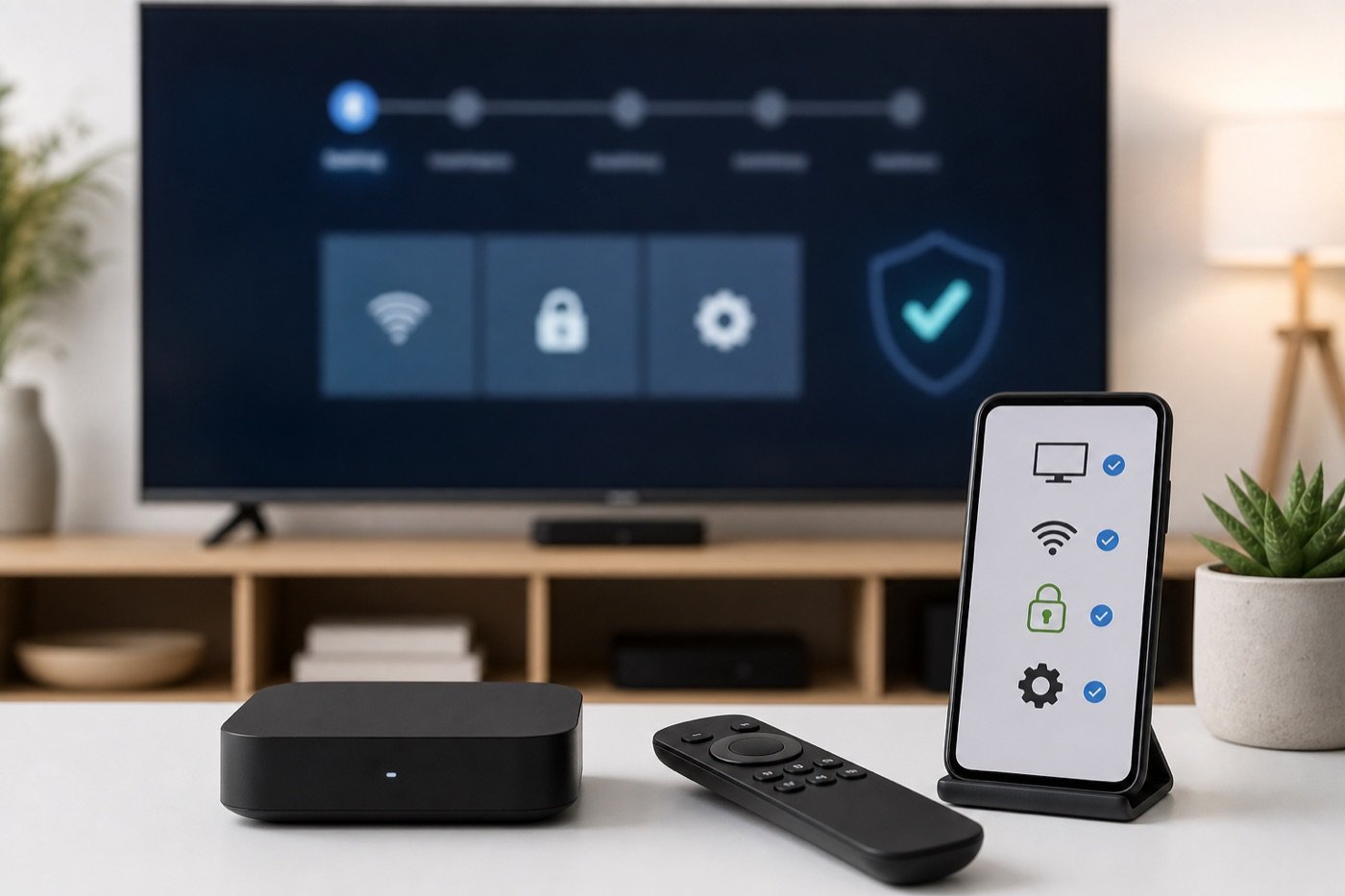
You unlock a SuperBox by setting it up correctly, not by cracking paid apps or bypassing service rules. In normal use, “unlock” usually means connecting the box to your TV, pairing the remote, joining Wi-Fi or Ethernet, updating software, signing in where required, enabling app permissions carefully, and contacting support if a model-specific activation step is needed.
This guide was reviewed on July 27, 2026. Menus, app availability, update screens, and SuperBox model details can change, so use this as a safe setup checklist and confirm any model-specific instructions with your seller or official support.
Quick answer: how do you unlock a SuperBox?
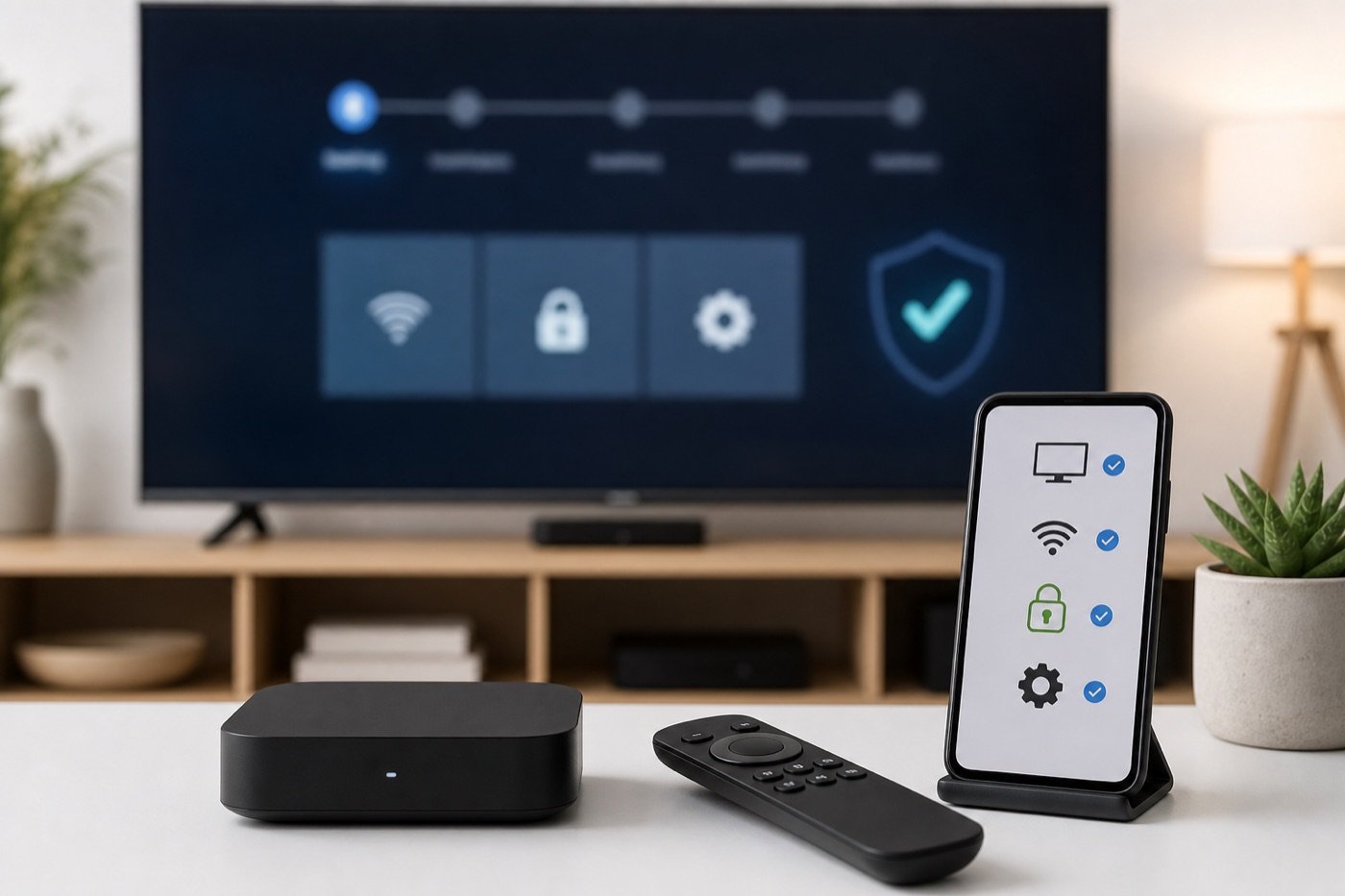
The safe answer is simple: connect the SuperBox to power and HDMI, connect it to the internet, complete the first-run setup, update the system and apps, pair the remote or keyboard, then sign in to the apps and services you personally use. If a feature is still locked, check whether it needs an account, a valid subscription, a region-supported app, a software update, or help from the seller.
The unsafe answer is anything that promises to unlock premium channels, paid apps, or copyrighted content for free. This article does not provide jailbreak steps, piracy APK instructions, credential sharing methods, or ways to bypass DRM or subscription checks. Those routes can create legal, account, privacy, and malware risk.
For more setup-oriented posts, browse the SuperBox Setup category, the Streaming Guides category, and the SuperBox tag.
What “unlock” usually means on a SuperBox
People use the word “unlock” in several different ways. Some mean first-time activation. Some mean opening the home screen after setup. Some mean enabling Wi-Fi, Bluetooth, or app permissions. Some mean finding where apps are located. Others use the word to ask about illegal unlocking, which is a very different topic.
For a normal owner, the useful meaning is: make the device ready to use while keeping accounts, software, and network security intact. That is the approach this guide follows.
If you are still learning the basics, start with our Device Security archive and the Android TV Box tag, then keep this checklist nearby during setup.
Safe unlock vs risky unlock
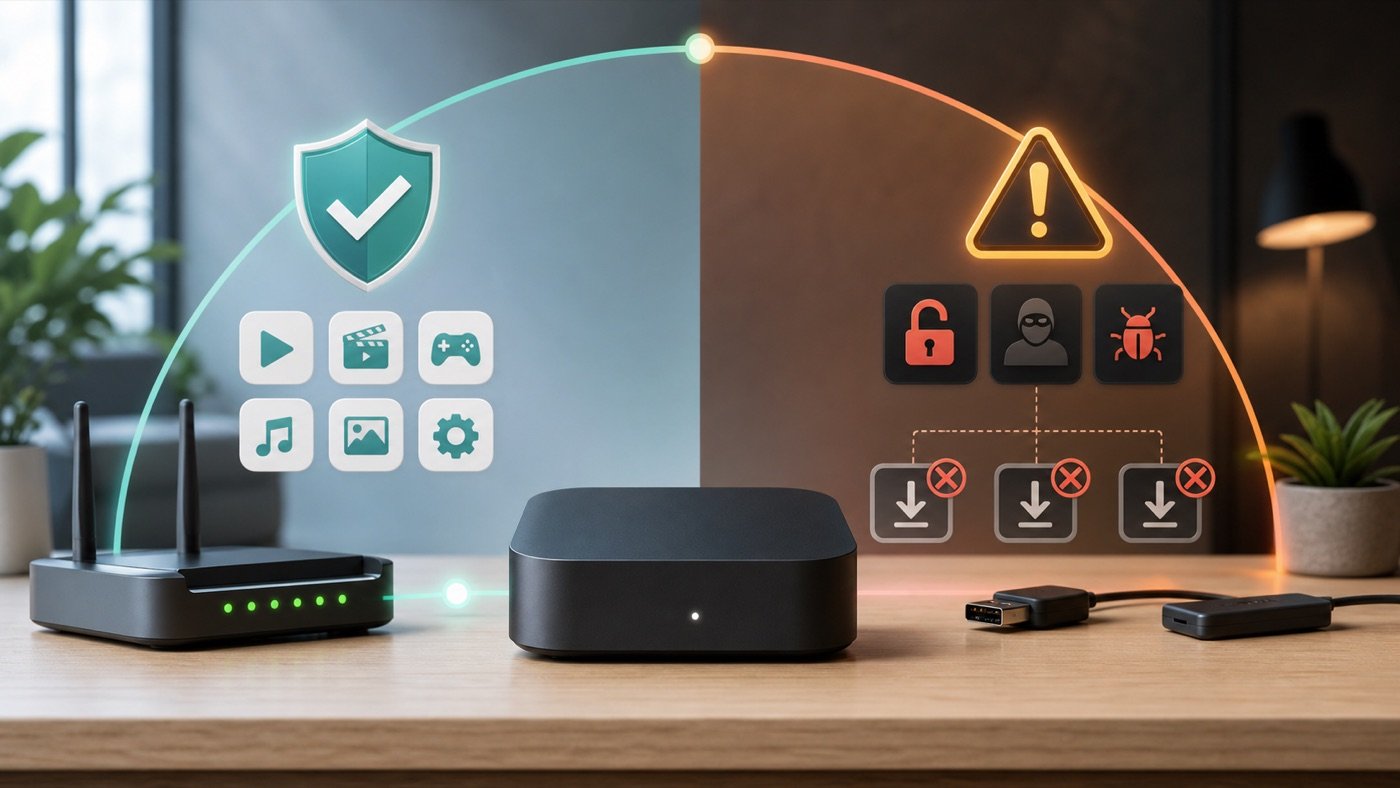
The difference matters. A safe unlock turns on legitimate device features. A risky unlock tries to work around payments, app restrictions, security settings, or content rights. A TV box can be flexible, but flexibility does not change the rules for the apps and services running on it.
| Goal | Safe unlock | Risky unlock |
|---|---|---|
| First use | Complete HDMI, power, remote, and internet setup | Use a seller-provided hack or unknown activation file |
| Apps | Install from trusted stores or verified vendor instructions | Download modified APKs from random links |
| Premium services | Use your own paid account when required | Bypass subscriptions or use shared stolen credentials |
| Security | Keep updates, Play Protect-style checks, and permissions under control | Disable protections to run unknown apps |
| Support | Ask the seller or support team for model-specific help | Follow public “unlock code” videos from unknown sources |
Step 1: connect the box correctly
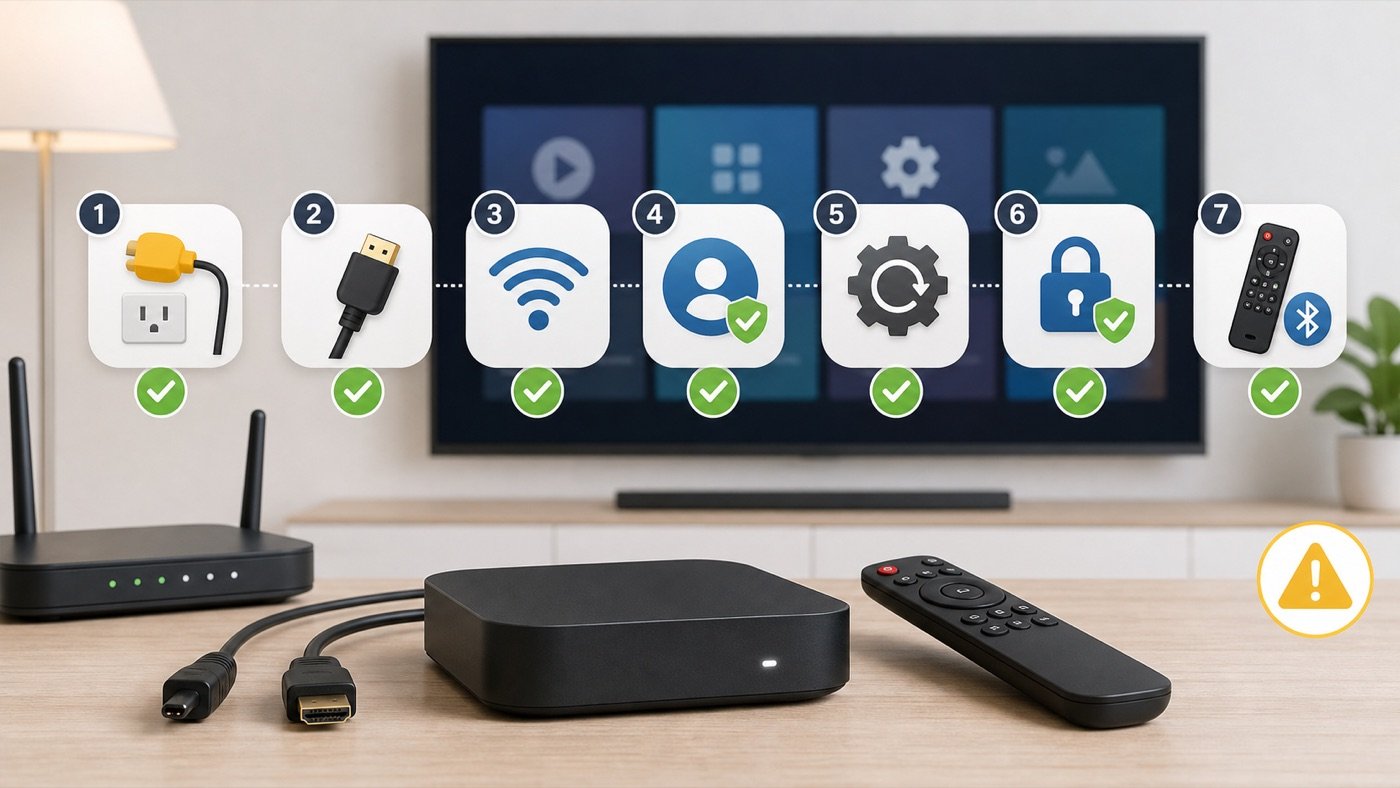
Start with the boring hardware steps because many “locked” problems are really setup problems. Connect the HDMI cable directly from the SuperBox to the TV, plug in the power adapter, choose the matching HDMI input on the TV, and wait for the box to finish booting. If the screen is blank, try a different HDMI port, reseat the cable, and confirm the TV input before assuming the device is locked.
Use a stable power outlet and avoid underpowered USB ports on the TV unless your model specifically supports that. If the device restarts repeatedly, freezes during boot, or never reaches the home screen, treat it as a setup or hardware support issue rather than an unlock issue.
Step 2: pair the remote and connect to the internet
Next, make sure you can control the interface. Install fresh batteries, point the remote at the box if it uses infrared, or follow the model’s Bluetooth pairing steps if it uses Bluetooth. A mini keyboard or mouse can help during setup if the remote is hard to use.
Then connect to Wi-Fi or Ethernet. Ethernet is usually more stable for streaming. If you use Wi-Fi, choose your private home network, enter the password carefully, and avoid public networks for account sign-ins. Google has a general Android TV setup guide that is useful for understanding the normal TV-box setup pattern: connect the device, use the remote, connect to the internet, and finish account setup where applicable.
Step 3: update the system before adding apps
Before installing or opening many apps, check for software updates. Updates can fix app crashes, remote behavior, network bugs, time-zone issues, and security problems. If your SuperBox has an update app or system update menu, run it first and restart the device when prompted.
Do the same for apps. An app that looks locked may simply be outdated, signed out, region-limited, or waiting for permissions. Updating first reduces false troubleshooting and keeps the device easier to support.
Step 4: sign in only where it makes sense
Some apps need an account. Others need a paid subscription. A streaming box does not turn paid services into free services. If an app asks you to sign in, make sure the app is legitimate before entering credentials. Avoid login screens that appear inside unfamiliar apps, redirect to strange pages, or promise premium services at no cost.
For Android-based devices, Google explains how Google Play Protect checks apps and warns about harmful behavior. Your exact SuperBox setup may differ from a certified Google TV device, but the principle is the same: unknown apps and unusual permissions deserve caution.
Step 5: manage app permissions carefully
Permissions are another place where people confuse setup with unlocking. A video app may need network access. A voice remote may need microphone access. A media app may need storage access. But not every app needs every permission.
Give the minimum permission needed for the feature you are using. If a simple streaming app asks for contacts, SMS, accessibility control, device administration, or broad storage access without a clear reason, stop and investigate. The App Safety tag is a useful place to keep related checks together as your site grows.
Step 6: use trusted app sources
Only install apps from sources you trust. If your model includes an official app marketplace or the seller provides current setup instructions, use that path first. If an app is not available, ask support before trying random download links. Unknown APK sites may package malware, adware, credential-stealing screens, or fake streaming apps.
The FTC’s consumer advice on securing your home Wi-Fi network is also relevant here because every streaming box lives on your network. Use a strong Wi-Fi password, keep the router updated, and avoid giving unknown devices or apps more access than necessary.
Step 7: troubleshoot common locked-feature problems
If a normal feature still appears locked, work through ordinary causes before assuming something secret is required.
- No picture: check HDMI input, HDMI cable, power adapter, and TV compatibility.
- No remote response: replace batteries, re-pair Bluetooth, or try a USB keyboard.
- No apps loading: check internet, date and time, DNS, and software updates.
- App says sign in: use your own account for that service.
- App says unavailable: check region, app support, and whether the app works on that device type.
- Activation screen appears: contact the seller or support channel tied to your purchase.
- Storage warning appears: uninstall unused apps and clear cache before adding more.
When to contact SuperBox support or your seller
Contact support if the box asks for model-specific activation, if the serial number or order details are needed, if the device arrived with missing accessories, or if the home screen never loads after basic troubleshooting. Keep your order number, model name, photos of the setup, and a short description of the issue ready.
Do not share your email password, streaming-service password, or private payment information in public comments. Use the official support or seller channel tied to your purchase. For future internal help pages, connect this article from the SuperBox Setup and Device Security categories.
What not to do when trying to unlock a SuperBox
Do not install “unlock all channels” APKs from unknown sites. Do not enter paid-service passwords into suspicious apps. Do not buy a box because a seller promises free Netflix, free HBO, or free premium sports without a clear legal source. Do not disable security settings just because a video says it is required. Do not follow instructions that tell you to hide traffic, spoof accounts, or bypass service checks.
A legitimate TV box setup should make the device usable. It should not require you to compromise your account, ignore copyright rules, or trust anonymous files. If the only way a feature works is through a shady unlock method, the feature is the problem.
Final checklist before you start streaming
Use this checklist before handing the device to a family member or using it as your main living-room box.
- The TV input, HDMI cable, power adapter, and remote all work.
- The device is connected to a private Wi-Fi network or Ethernet.
- System updates and app updates have been checked.
- Apps come from trusted sources.
- Paid services use your own valid accounts.
- Unknown APKs, fake unlock codes, and free premium-content promises have been avoided.
- Permissions are limited to what each app actually needs.
- Support information and order details are saved in case activation help is needed.
Once those items are done, your SuperBox is “unlocked” in the useful sense: it is set up, connected, updated, and ready for legitimate apps and services.
FAQs
Is unlocking a SuperBox the same as jailbreaking it?
No. In this guide, unlocking means normal setup and activation. Jailbreaking usually means bypassing restrictions or installing untrusted software, which can create security, legal, and support problems.
Do I need an unlock code for SuperBox?
Most normal setup steps should not need a public unlock code. If your device shows an activation or registration screen, contact the seller or official support tied to your purchase instead of using random codes online.
Can unlocking a SuperBox give me free Netflix or HBO?
No. A TV box does not legally unlock paid streaming services for free. Use your own valid account and follow each service’s terms.
Why does my SuperBox say an app is locked?
The app may need sign-in, a subscription, a region-supported version, an update, or a device compatibility check. It may also be an unsupported or unsafe app source.
Is it safe to install APKs to unlock features?
Only install APKs from sources you trust and understand. Unknown APKs that promise premium channels or hidden features can contain malware or steal account information.
What should I do if my SuperBox will not activate?
Check internet, date and time, software updates, and your order details. If it still will not activate, contact the seller or support channel for model-specific help.